Victoria Situation displays the maritime situation for any selected date and time.
The system receives and integrates vessel position data from multiple sources: satellite AIS, coastal AIS, LRIT, and others.
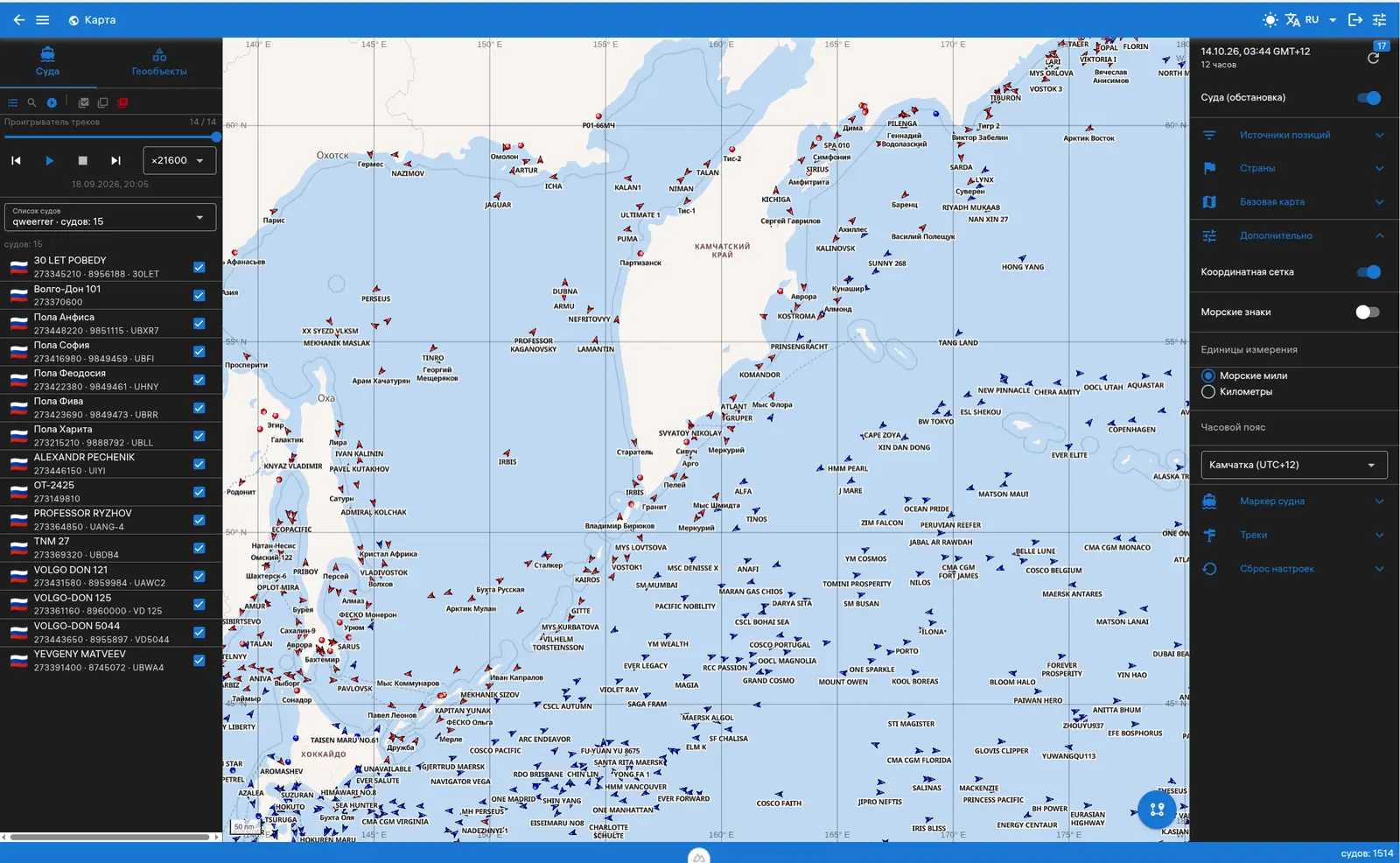
The Situation Panel controls the display of vessel positions on the map.
Not all vessels are shown at once. To avoid overloading the rendering and turning dense areas into a jumble, at low zoom (z ≤ 5) positions are grouped into hexagonal cells (h3): the fastest vessel per cell is kept. The cell size adapts to the zoom — the smaller the scale, the larger the cells and the stronger the grouping. In addition, the number of vessels per map tile is limited: favourites are shown first, then the fastest ones. As you zoom in, the grouping weakens and vessels are displayed individually.
Set the date and time of the situation to display. Use the date and time pickers for precise selection.
Set the time window for vessel positions to display around the selected situation time.
Enable automatic refresh every 5 minutes to keep the situation display current.
Toggle the situation layer on the map to show or hide vessel positions.
Click “Refresh situation” to download data from the server again, bypassing the local copy. The map and saved copy are updated after loading. A network connection is required. Auto-refresh also downloads data from the server.
When the map opens, the situation and country directory are restored from the local copy if available and compatible. Server updates are checked in the background; changed data is downloaded and saved in the browser. If the copy is missing or restoration fails, the network is used. If the background check fails, the restored copy remains available but may be outdated. The basemap and other resources may require internet access.
Filter vessel positions by data source to focus on specific types of AIS stations or satellite systems.
- Satellite AIS (S-AIS) — positions from satellite receivers
- Coastal AIS (T-AIS) — positions from shore stations
- LRIT — Long Range Identification and Tracking data
- Other sources — V-AIS, N-AIS, STO, and more
Use 'Select all' to enable all sources, or 'Clear all' to show all sources without filtering.
Filter vessel positions by the country of registration.
- Neutral — vessels of this country are shown as usual
- Included (green list) — show only vessels of the selected countries
- Excluded (pink list) — hide vessels of the selected countries
- The eye button cycles the state: exclude → include → reset
- Quick actions "Favorite countries" and "All except favorites" use the Russia flag
- Search by name and country flags simplify selection
Customize the appearance of vessel markers on the map.
Adjust the size of vessel markers from 0.3× to 5× using the slider. The default scale is 1×.
Choose how vessel markers are colored on the map.
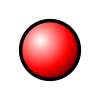
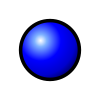
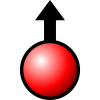
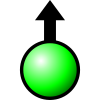
- By Flag — Color markers by flag state: red for favorites, blue for others. Triangle shape indicates moving vessels.
- By Source — Color markers by data source type: satellite AIS, coastal AIS, LRIT, or other sources.
- By Freshness — Color markers by position freshness: green for outdated (older than 24 hours from situation date), red for recent.
Vessel marker icons depend on the selected style:







The map supports multiple base layers and additional overlays for detailed navigation and monitoring.
Choose the base map layer that best suits your needs: OSM, OSM Bright, OSM Liberty, or Seamarks nautical charts.
Switch between light and dark themes for comfortable viewing in any lighting conditions.
Toggle the coordinate grid overlay for precise position reading.
Personal ship lists from the API: pick a list, search ships by name, MMSI, IMO or call sign, and control ship visibility. Lists are stored in the browser local database (DuckDB) and survive page reloads.
At the top of the panel is a selector with ship lists (each shows its ship count). Selecting a list shows its ships; the default list is the one marked as selected in the data. Each ship shows a country flag (emoji by country code), its name (Russian or English — per UI language), MMSI, IMO and call sign.
The search field under the selector filters ships of the selected list by name, MMSI, IMO or call sign, case-insensitively. Below the field is a counter of found ships.
The checkbox on the right of a ship row turns its visibility on or off. Clicking the row also toggles visibility. The change is saved immediately — both to the local database and to the browser cache. The checkbox also affects playback: a disabled vessel loses its track, track points and marker with arrows.
Lists are fetched from the server once — when the panel is first opened. The server is only contacted if the lists are neither in tab memory nor in the local cache; afterwards the lists live autonomously in the browser. A way to refresh server data has not been devised yet.
Ship lists and visibility are stored in this browser and restored after a reload if local writing is available. They are not synchronized between devices. Clearing site data, private browsing and storage restrictions may cause data loss.
Tracks are historical routes of vessel movements. You can replay them in time like a recording: a marker moves along the travelled path while the route is drawn as time goes on. Tracks can also be shown statically, as full lines on the map. The data is stored in the browser’s local database (DuckDB).
The «Track playback» toggle is available both in the vessels panel and in the map settings, and the state is shared. When it is switched on, tracks of the selected vessels are loaded — on large volumes this may take a few seconds. The time cursor is placed at the end of the loaded interval so that the latest positions are visible immediately; the rewind button moves it to the start.
The control panel is a floating card over the map (bottom-left corner by default), not a block inside the vessels panel: you can drag it by its header handle with the mouse or finger, and it stays within the map. It holds the buttons: to start, play/pause, stop, to end. The «stop» button pauses playback and moves the cursor to the right edge of the time scale. By default only the start of the time scale is shown — drag it with the mouse to see the whole interval. The speed is switched with buttons; by default one minute of data is played per second. The cross in the card switches the player off. On a narrow screen (a phone) the panel is not a card but a strip at the bottom of the screen on top of the map: the map underneath stays usable, and the cross in the strip switches the player off.
Four route elements are drawn during playback (hide them with the «Route» toggle):
- the route — a line cut to the length of the trail (see below);
- track points — small circles, visible from zoom 7, at smaller scales they turn into mush;
- direction arrows — at every track point within the trail, visible from zoom 10, at smaller scales there are tens of thousands of them and they merge into a band;
- vessel marker — the sign from the situation sprite with an orange halo around it, rotating by heading; the halo itself is described below.
Hovering a vessel sign (situation or track) shows a full vessel tooltip: name, ID, MMSI, IMO, callsign, country, speed, course, source, time. On a track point it is a minimal tooltip: coordinates, time, speed, course, source plus the vessel name; the point itself grows while hovered. On a route line the tooltip shows the calculated point on the segment with interpolated time and course. As soon as the cursor moves onto a vessel sign, the point enlargement and the calculated line point are cleared.
The «Tracks» block in the map settings controls both the static tracks and the playback. Each slider shows its value without hovering (in percent or hours); hover a row to read what a setting does, and the colour swatch tooltip shows the exact chosen colour.
- Show tracks — Turns the full vessel tracks on the map on. The other settings of the block apply to them and to track playback alike.
- Track route — Hides the lines, arrows and track points, leaving vessel markers: playback keeps moving the markers along the track, but does not draw the path.
- Colours and opacity — Line colour and point colour are set separately. Click the colour swatch next to the label — a picker opens where the hue is chosen in the spectrum and the opacity with a separate slider at the bottom (in the colour code these are the last two digits: #rrggbbaa). The arrows take the line colour. Until a colour is set manually it follows the theme: black line, crimson point. To restore the theme colour, reset the settings.
- Line width — The route line width — from 1 to 8 px. Applies both to the static tracks on the map and to playback (the same layer draws the line in both modes), so the slider is locked only without the «Track route».
- Point size — Diameter of the track waypoint dots — from 1 to 12 px. Applies both to the static tracks on the map and to playback; the row is disabled together with «Route».
- Filtering invalid positions — Hides «junk» track points: broken coordinates (not a number, 0;0, out of the 180/90 range), jumps at an unrealistic speed and far «teleportations». The line is not torn into fragments — only the incoming point is dropped. The «Maximum speed» and «Maximum jump» thresholds are set with sliders on the map (in knots and kilometres); a value of 0 disables the corresponding check, while broken coordinates are always dropped. The setting applies immediately when changed — the track is redrawn without an «Apply» button.
- Data window — How many tracks is loaded from the database when the playback is switched on — from 0 to 720 hours. Not to be confused with the «Route length»: the window limits loading, while the length shows what stays behind the current moment.
«Route length» in the map settings sets how much history is shown behind the current moment (in hours, 0 — the whole history). Beyond that trail the route and the arrows are cut off immediately, without a fade: a fading tail was read as «the route gradually disappears», while in fact there is simply no data there. «Data window» limits how much of the track history is loaded from the database — useful when the history is large.
The map settings have a «Marker style» that applies both to the situation and to playback, with the same options: «By flag» (a moving vessel is a triangle, a standing one is a circle, vessels of favourite countries are red), «By source type» (sign shape depends on the data source, favourites are red) and «By position freshness» (green sign if the position is not older than a day relative to the situation date, otherwise red). «Marker scale» changes the sign size in both modes. In playback the sign is surrounded by an orange halo — a soft glow; its size is set in the layer code.
The vessel marker in playback is surrounded by an orange halo — a soft glow. It helps to find a vessel on a busy map: the halo is drawn above the route line and arrows, while its colour and size are set in the layer code.
A separate setting shows the vessel name next to the marker in playback: black text on a white rounded, outlined background. The name follows the interface language (Cyrillic or Latin), and falls back to the other language if it is not filled in. Off by default: with many vessels the labels cover route lines. This is not the same as «Vessel name» in the «Marker» block, which applies to the situation.
Uncheck a vessel in the vessels panel and its track on the map, its track points, and its marker with arrows in playback all disappear. The switch is instant: tracks are read from the database only once, afterwards the selection works on already loaded data, so the list does not freeze.
For development, the browser console prints the playback FPS once per second together with the cost of the position calculation. The message is visible in development mode only; it is absent in the production build. If the FPS is low, look at the second number in the line: if the position calculation takes a fraction of a millisecond, playback is not the cause and the map itself is slow to redraw.
Draw your own objects on the map: points, lines, polygons, circles and rectangles. Objects are stored in the browser's local database (DuckDB) and rendered as a layer above the map.
The pencil button in the bottom-right corner of the map opens the drawing panel (at the top of the map on desktop, above the bottom bar on mobile). Pick a tool — point, line, polygon, circle or rectangle — and click on the map. For lines and polygons each click adds a vertex, double-click finishes the shape. Clicking the active button again cancels the mode. The close button collapses the panel; unsaved shapes are lost.
The arrows button enables object moving, the pencil button enables vertex editing (dragging nodes, adding intermediate points via edge midpoints). The trash button enables click-to-delete mode.
Drawing and edits first affect only the working copy. The save button (floppy) is enabled when there are unsaved changes and is highlighted green. On save, the object name is requested: if the shape already has a name, the dialog field is prefilled with it. After confirmation the object is written to the local DuckDB database and appears in the Geoobjects panel and the map layer, while the editor is cleared — you can draw the next shape. Deleting shapes in the editor does not affect already saved records.
Each object can have its style changed: fill color and opacity, outline color and width, label text color and size. The style is changed in a dialog opened by the palette button in the Geoobjects panel (for saved objects) or in the drawing toolbar (for new shapes). Styles apply to all shapes in the working copy. «Reset» returns to the default style.
Saved objects are rendered in blue: polygon fill is translucent, outlines are pink, points are blue circles with a white stroke; each object carries a label with its name. Polygon labels are placed at the center of the shape (to avoid duplication at tile boundaries). Saved objects are listed in the Geoobjects panel on the left — with an icon and the shape type (point, line, polygon, circle, rectangle).
Saved geoobjects and their styles are stored in this browser and restored after a reload if local writing is available. Objects are not yet sent to the server or synchronized between devices. Clearing site data, private browsing and storage restrictions may cause objects to be lost. Do not store important data only in the browser. Unsaved shapes in the working copy are not restored.